How to get a transcript of your own TikTok videos
You recorded a ninety-second explanation of how you price your work. It went well. Now you need it as text, for a newsletter, a client email, or the subtitles on the same video somewhere else. The obvious plan is to copy it out of TikTok, and that is where the plan ends.
What TikTok gives you to copy is the caption. The caption is what you typed on the way out the door. It is not what you said, which is the part you wanted.
What people end up doing
Three things, mostly. They retype the video while pausing it every four seconds (I have done this, and I do not recommend it). They paste the link into one of the “TikTok to text” websites. Or they give up and rewrite the thing from memory, which is how the version in the newsletter ends up different from the one on camera.
The websites deserve a word. They work by taking your link and sending it to a server that does the transcribing. For a public video that is a fair trade. For your own back catalogue it means handing a stranger’s service a few hundred videos of your voice, one link at a time, and the privacy policy of each one is a separate reading assignment.
Doing it on the phone instead
FindMyTok reaches your videos through your own signed-in TikTok session, the same way the app does, and transcribes the speech on your iPhone using Apple’s speech recognition. The audio never leaves the device. (What on-device actually means, including the parts that still touch the network.)
The steps are short:
- Pick the language you speak in your TikToks. The speech model for it is downloaded once.
- Index the videos you want, either a whole period from the Archive screen or just by searching for a phrase from the one you are after.
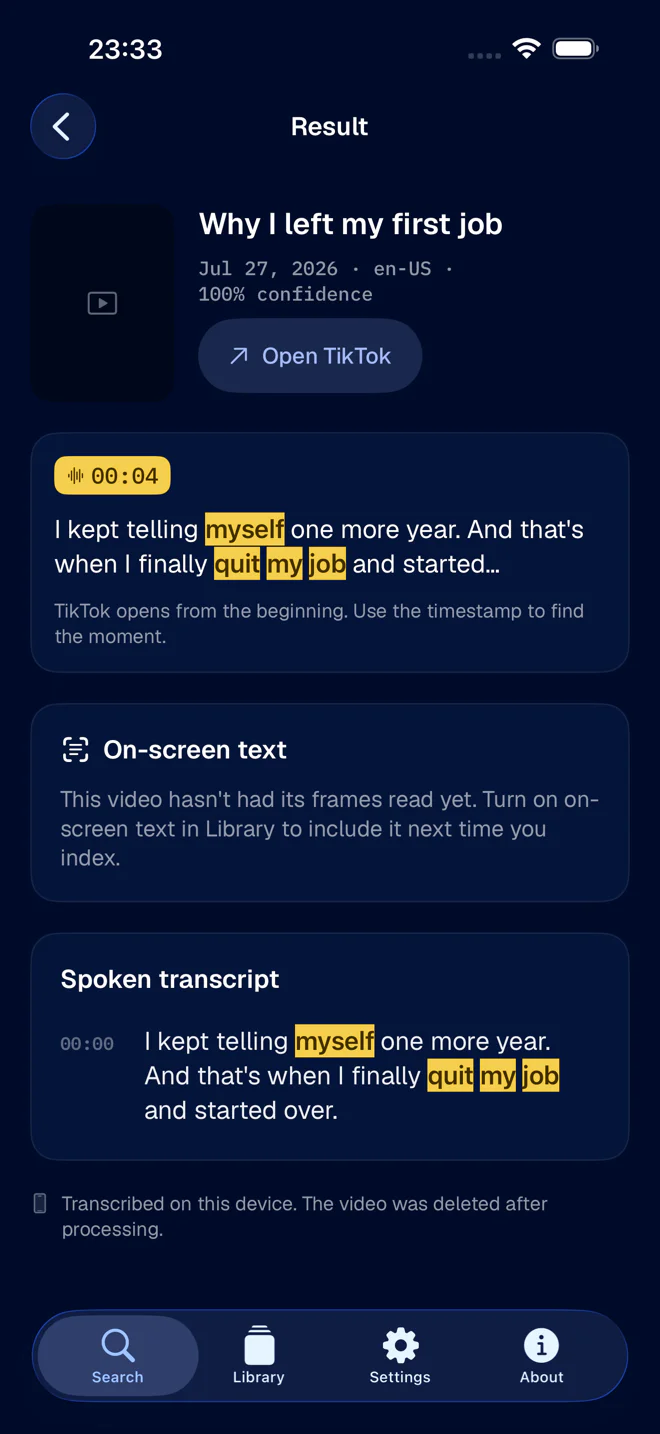
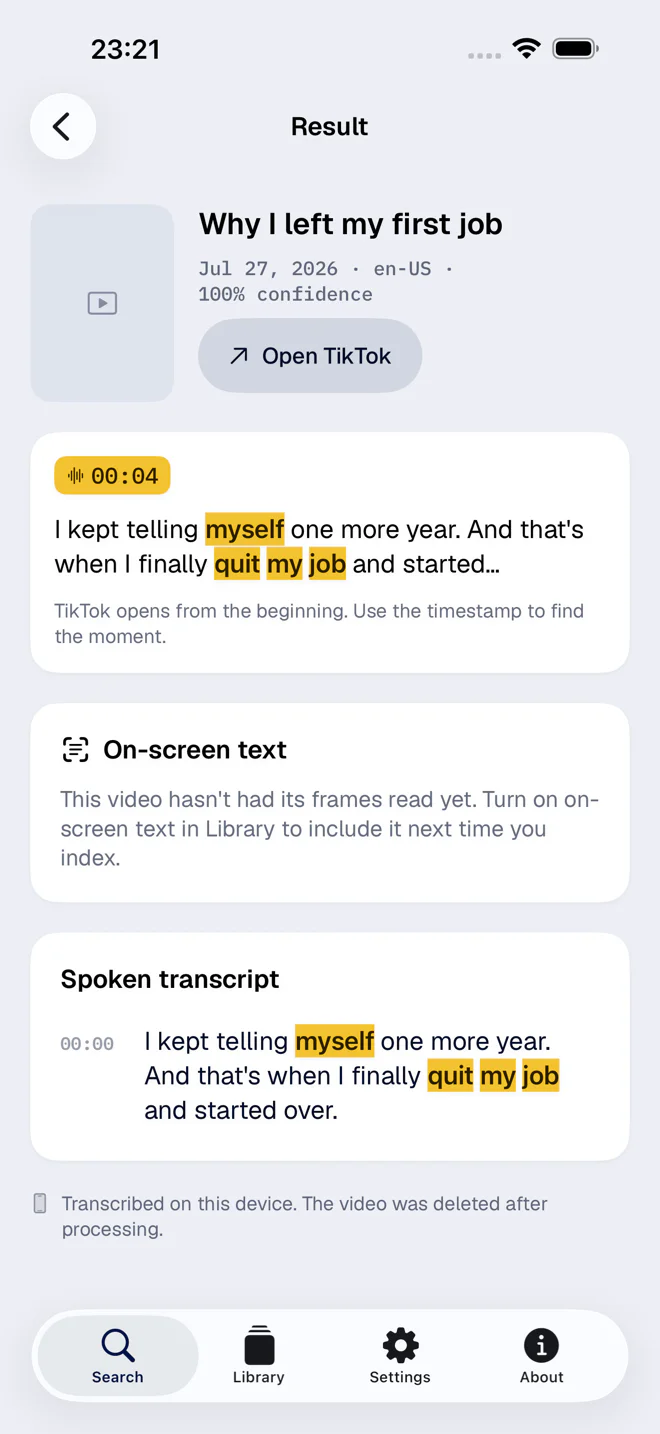
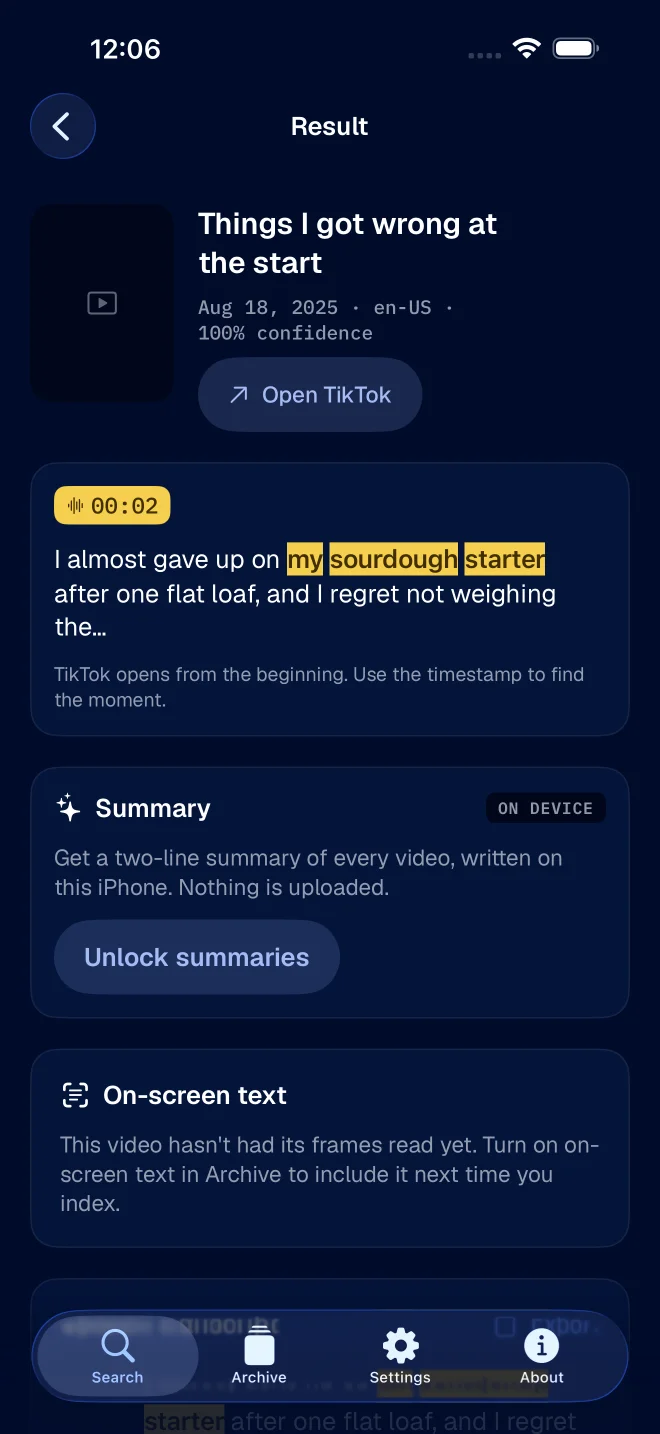
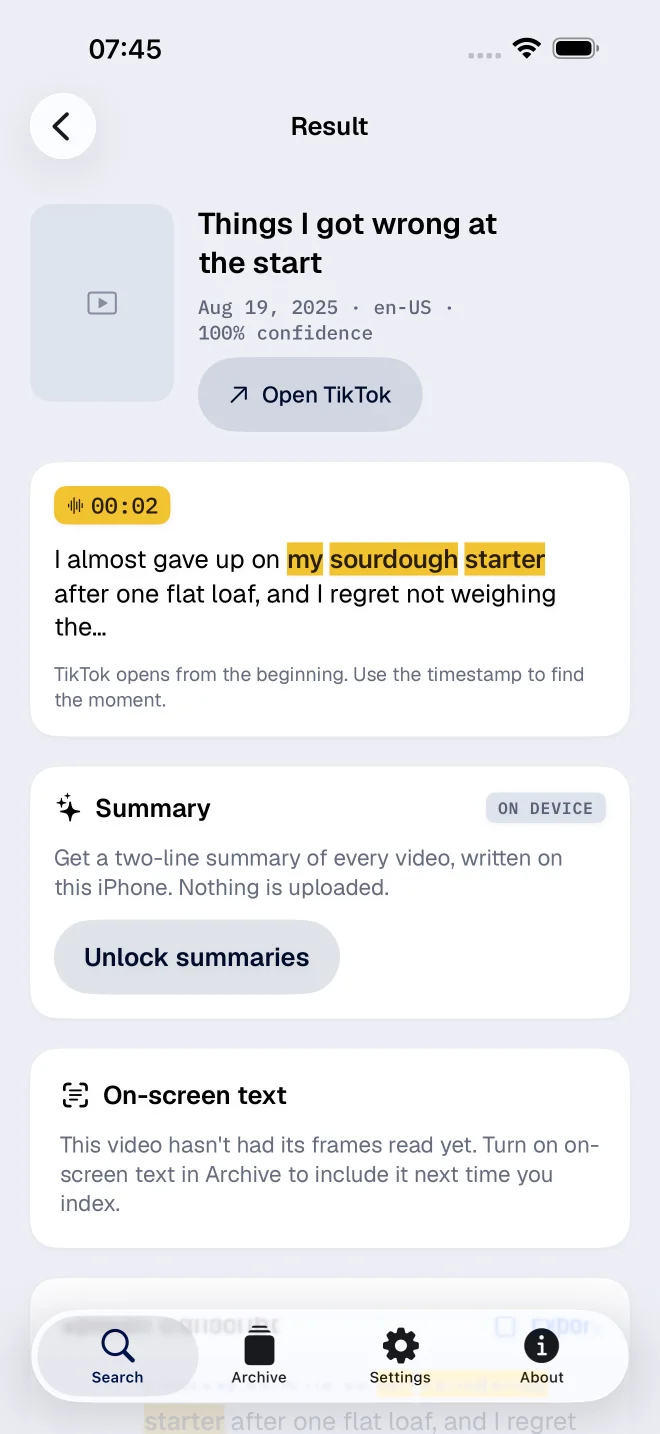
- Open the result. You get the transcript with your phrase highlighted and the second it was said.
- Choose Export transcript. The app offers three formats.
Which format to pick
- Plain text (.txt). The caption, then the transcript as running text. This is the one for a newsletter or a blog post.
- SubRip (.srt). The transcript cut into numbered captions with start and end times. Most video editors and platforms take this one.
- WebVTT (.vtt). The same idea, in the format browsers and a lot of web players prefer.
If you are reusing the video somewhere else, the subtitle files are the useful ones. They already know when each sentence starts, which is the part that takes an hour by hand.
What the text will look like
Good, and not perfect. Names, brands and slang are where it slips: a speech engine has never heard of your cousin’s bakery, and it will spell it the way it sounds. Music under the speech costs accuracy too, and so does a windy street.
Read it once before it goes anywhere with your name on it. Fixing a transcript takes a few minutes. Writing one takes the afternoon.
Where the method stops
- Only your own published videos, from the account you signed in with. It is not a tool for other people’s videos, and it will not do a draft you never posted.
- Speech only, unless you ask for more. Text drawn on the screen is a separate switch, covered in searching the text on screen.
- iOS 26 or later, on an iPhone or iPad.
If the transcript is only a stepping stone, and what you really want is the video where you said something, finding a TikTok by the words you remember is the better place to start.